Fork playbook
Every new tenant starts as a copy of the Meridian reference baseline — the fictional "Meridian Travel Co." configuration that ships with the platform. The baseline is generic, vertical-neutral, and render-verified: every document type carries sample data that validates against its schema, and a machine-readable QA manifest defines the selector-level expectations the test harness enforces on every change (see How QA works).
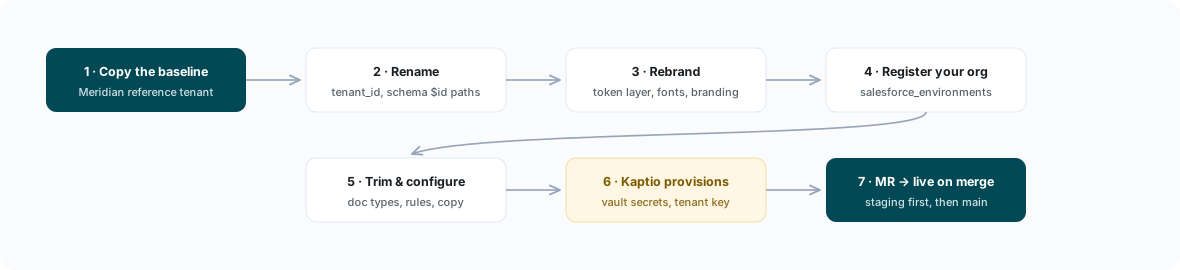
This page is the end-to-end procedure for turning that baseline into your tenant. Follow the steps in order; each builds on the previous one.
The fork is usually executed by Kaptio or your implementation partner as part of onboarding. Self-managed teams with their own configuration repository can follow the steps directly — the ops items in step 7 are always performed by Kaptio. Examples on this page use "Acme Travel" to stand for your company's own values.
Before you start
- You need a checkout of your configuration repository and a feature branch. Never
commit directly to
stagingormain. - Familiarize yourself with the tenant model — a tenant is a folder of plain configuration files, with no custom application code.
Step 1 — Copy the baseline
On a feature branch, copy the baseline folder to your tenant folder (the baseline folder name in your configuration repository is confirmed at onboarding):
cp -r tenants/<baseline-folder> tenants/<your-tenant>
Keep everything for now, including the QA manifest and sample data. You will trim what you do not need in step 5, and the manifest is what makes every later change testable.
Step 2 — Rename the tenant
Replace every reference to the baseline identity:
tenant_idandtenant_nameinblueprint.yaml.tenant_idinpayment.yaml.tenant_idinqa-manifest.yaml.- The
$idhost path in every schema file: each schema declares an identifier of the formhttps://kaptio.com/schemas/<tenant>/<doc_type>-1.0.json— update the tenant segment in all of them. - Search the whole folder for the baseline tenant name and for
meridianand replace the remaining occurrences (template copy, sample data, email placeholders).
A stale $id or tenant_id will not fail loudly — it produces documents attributed to
the wrong tenant. Do the search-and-replace pass before anything else.
Step 3 — Swap the brand layer
Branding is deliberately concentrated in a small number of files so a fork never edits templates to rebrand. Replace:
- the primitive token layer in
assets/css/variables.css, - the font import in
assets/css/fonts.css, - the
brandingandemail_brandingblocks inblueprint.yaml, - the
brandingblock inpayment.yaml.
The full procedure, including the two-layer token architecture and logo constraints, is documented in Rebranding.
Step 4 — Register your Salesforce org
Add your org under salesforce_environments in blueprint.yaml:
salesforce_environments:
  production:
    org_id: 00Dxx0000000000XXX      # 18-character Salesforce Org ID
    ktapi_client_id: "Acme Travel"  # KTAPI client DISPLAY NAME — see warning below
    ktapi_env: production           # mock | staging | qa | production
    edge_env: production            # staging | production
    config_ref: main                # git ref this org reads configuration from
KTAPI is Kaptio's API layer that Edge uses to read data from your org; your KTAPI
client is registered by Kaptio at onboarding. ktapi_client_id must match that
client's display name exactly — for example
"Acme Travel", never a lowercase slug like "acme-travel". A slug here fails
silently at data-transformation time: queries return empty results and documents
render with missing data, with no error pointing at the cause. Confirm the exact
display name with Kaptio during onboarding before you commit this value.
One org ID resolves to exactly one tenant across the entire configuration repository. Do not register the same org under two tenant folders; document creation is routed by org ID, so a duplicate mapping is a configuration error.
Use a sandbox org and edge_env: staging first; add the production stanza when you
promote (step 8).
Step 5 — Trim document types you do not need
The baseline ships nine document types. Keep only what your business issues, but remove a document type completely — these five artifacts travel together:
| Artifact | Location |
|---|---|
| Template folder | templates/<doc_type>/ |
| Schema | schemas/<doc_type>-1.0.json |
| Sample data | sample-data/<doc_type>.json (and variants) |
| Manifest entries | qa-manifest.yaml under doc_types |
| Blueprint actions | create_document_actions entries in blueprint.yaml |
Deleting the template but leaving the blueprint action produces a broken document button; deleting the schema but leaving the manifest entry fails the QA suite. Remove all five or none.
For the document types you keep, do not rename them. The canonical names
(option, booking_confirmation, invoice, cancel_invoice, commission_invoice,
commission_statement, financial_summary, final_travel_docs) propagate into schema
identifiers, template folders, data-transformation files, and cross-tenant tooling. See
Document types.
Step 6 — Fill placeholder tokens and enable optional rules
Optional capability in the baseline ships as structured-disabled configuration:
real YAML objects with enabled: false and named placeholder tokens, never
commented-out blocks. Payment eligibility rules are the main example — the
on_request_confirmed rule ships with :onRequestStatusId and :confirmedStatusId
placeholders in its query:
- id: on_request_confirmed
  enabled: false
  description: Block payment while any On Request services remain unconfirmed
  query: |
    SELECT Id, Name
    FROM KaptioTravel__Itinerary_Item__c
    WHERE KaptioTravel__Itinerary__c = :itineraryId
      AND KaptioTravel__InventoryStatusId__c = :onRequestStatusId
      AND KaptioTravel__ConfirmationStatusId__c != :confirmedStatusId
    LIMIT 10
These IDs are org-specific. Look up the record IDs in your Salesforce org, replace the
placeholder tokens, then flip enabled: true. The same pattern applies to the
final_payment_due rule and to disabled payment-method stubs in payment.yaml — see
Edge Pay configuration.
Step 7 — Onboarding operations (performed by Kaptio)
Three provisioning steps are performed by Kaptio as part of onboarding — raise them with your Kaptio contact; they are not self-service:
- Tenant signing secret. A JWT signing secret is generated for your tenant and registered on the platform (staging first, then production).
- Payment gateway credentials. Gateway credentials are written to the platform
vault. Your
payment.yamlreferences them asvault::references only — for examplepublic_key: "vault::braintree_public_key". Never put credential literals in configuration files. - Payment routing record. Kaptio confirms your org's
PaymentGateway__crouting record carries the correct base URL and tenant ID so payments route to your tenant.
Step 8 — Ship it
- Open a merge request from your feature branch to
staging. - The QA suite must be green — every dataset, every document type, and the action matrix (see The quality bar).
- After the merge to
staging, verify document creation end-to-end against your sandbox org: create each document type from a real itinerary and check rendering, email, and payment flows. - Open a merge request from
stagingtomainto go live.
Configuration is live on merge — the platform picks up merged changes through cache invalidation. There is no deployment step and nothing to restart.
Quick reference
| Step | What changes | Where |
|---|---|---|
| 1 | New tenant folder | tenants/<your-tenant>/ |
| 2 | Identity | blueprint.yaml, payment.yaml, qa-manifest.yaml, schema $ids |
| 3 | Brand | variables.css, fonts.css, branding blocks |
| 4 | Org binding | salesforce_environments |
| 5 | Document set | templates, schemas, sample data, manifest, actions |
| 6 | Org-specific rules | placeholder tokens, enabled: true |
| 7 | Secrets and routing | performed by Kaptio |
| 8 | Release | MR to staging, verify, MR to main |